
Beginner’s guide to Tasker, part 2: Variables

In the first part of this guide I covered the basics of Tasker, and mentioned that I would go more into variables and scenes later on. Both are features that require a bit more explanation than the other aspects in general, so I’m going to dedicate an article to each of these topics. First out, variables.

What is a variable?
Variables are part of many programming languages, and Tasker is, in many ways, a programming language. Mathematics also use variables, and in many ways they work the same too.
A variable is essentially a virtual text file. Imagine a text file called variable.txt that contains the text “Hello World.” Instead of it being a physical file you can move around however, it exists within Tasker; and instead of being called variable.txt, it’s called %variable. The percentage symbol is always present at the beginning of a variable name, and it’s the way that Tasker knows that something is a variable – just like the file extension .txt lets computers know that it’s a text file. The name that follows the percentage symbol is in a way the file name. Just like a text file, a variable can contain text, but only text. This text can be a single symbol, number, a URL, a paragraph from an article – any text, in other words.
When a variable is used anywhere in Tasker, Tasker will replace the variable with whatever the value (content) of the variable is when it executes whatever the variable is used in. Let’s say you have a variable %hello that contains “Hello World.” You then tell Tasker to create a notification with the text %hello. When Tasker then goes to create the notification, it will check the value of the variable, and use that instead of the variable name. As such, the final notification created by Tasker will not read “%hello.” Instead, it will read “Hello World.”
Why use variables?
The purpose of variables is to have a way to store information in a dynamic way. This enables you to not only transfer information between different parts of Tasker, but also to control Tasker settings and text remotely, without having to go into each context/task and manually change it.
To fully understand the purpose of using variables, you first need to know about the different ways that you can change the value (contents) of a variable. Some examples include:
- Set the value of a variable using an action. This value can then be used as a context for a completely different profile, or used as part of other actions
- Turn the contents of a real text file into the value of a variable
- Do math using variables. For instance, you can add +1 to a variable every time an action runs. The variable value would then increase in numerical value the more times the action is run, acting as a counter
- Many system settings and events exist in variable form in Tasker. The value of the variable %TIME is always the current time, %DATE is always the date, %BATT is always the battery level and so on. Full list of these so-called built-in variables are here, and knowing how to use these is one of the more important lessons of Tasker
In short, there are many ways to change the value of a variable. The whole idea is to create a library of information that different parts of Tasker can access, instead of having information stored as static text that’s only usable where it’s written. In fact, variables share a lot of advantages with the internet:
- Information can be shared easily between connected participants
- Information collaboration is possible by having multiple participants work on the same information
- Information can be updated in once place and still reach multiple participants without each of them having to be updated directly
With the internet, participants are internet users. With Tasker and variables, the participants are different actions, contexts, and so on within Tasker.
Variable name capitalization
 The capitalization of variable names actually changes – and indicates – what type of variable it is. There are three types: local, global, and built-in. To create variables of a certain type (only global and local variables can be user created), simply use the corresponding capitalization format. Furthermore, global variables are listed in Tasker’s Variables tab, however neither local nor built-in variables are.
- Local variables are all lowercase and are only available to the task/profile that creates them. If you have a task “Home” that creates a variable %home, then that variable will not be available to other tasks. Another task “Away” would hence not be able to use that variable.
- Global variables are listed in the Variables tab and will be visible and usable by all parts of Tasker. These variables have to start with a capital letter. If your “Home” task creates a variable %Home, your “Away” task will be able to see it, change it, and use it.
- Built-in variables are always all uppercase. These are the variables I talked about above which are built into Tasker and that take on the values of system information. %TIME, %DATE, and %BATT are the examples I used above. These can be read by any part of Tasker, but do not show in the variables tab. Furthermore, they cannot be changed by the user, as they by definition display a piece of system (generated) information. The only way to change %BATT is to change the actual battery level by charging or discharging the battery.
Exceptions
No rules are without exceptions. There are some variables that take the form of local variables, but are actually built-in variables. An example is %new_val, which you’ll run into in scene creation. For the time being though, you can ignore these for the sake of avoiding unnecessary confusion.
Variables for information sharing and dynamic text
Variables can be used to share information between parts of Tasker, and even between plugins and Tasker. To use the internet simile from above, variables allow one part of Tasker to send information to another part, just like an internet user would email another.
The concept of dynamic text is like document collaboration in Google Documents or other online document editors. Instead of text being a static creation, parts of it can be changed out by different independent sources.
Example 1: My morning message
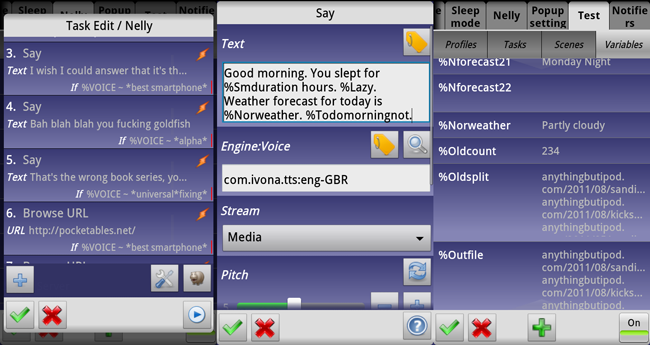
 I have an elaborate sleep mode setup that I use every night. When I wake up in the morning, I use a Tasker action called Say (found in the Misc category), which is a text to speech function. This action has a text field into which I type the text I want it to say, and then the phone reads that message out loud. Currently, this text field reads:
Good morning. You slept for %Smduration hours. %Lazy. Weather forecast for today is %Norweather. %Todomorningnot
As you can see, this message contains 4 variables (it used to contain more). Before the Say action runs, dozens of other actions run, collect and process data, and store the final results in these four variables.
- %Smduration is the duration, in hours, that the sleep mode was active for. If it was activated at 23:00 (11 PM) and deactivated at 7:00 (7 AM), then the value of %Smduration would be 8.
- %Lazy’s value depends on the value of %Smduration. If %Smduration is at least 9, %Lazy’s value is “You lazy bastard”. If %Smduration is less than 9, it’s simply nothing.
- %Norweather is the result of a task I made to collect Norwegian weather data. Its value is a very short description of the weather forecast for that day, like “sunny” or “heavy rain.”
- %Todomorningnot is part of my Tasker-based todo list system. If I have todo list items marked “morning,” its value is “You have items due in your todo list.” If I don’t have any such items, its value is simply nothing.
By using these four variables, the message the phone speaks in the morning varies depending on these – and here comes the reason for the name “variable” – variables.
If I get up after 8.5 hours on a rainy day where I have nothing to do, the phone will speak the following message:
Good morning. You slept for 8.5 hours. Weather forecast for today is rain.
If I get up after 10.2 hours on a sunny day where I have items in my todo list, the phone will speak the following message:
Good morning. You slept for 10.2 hours. You lazy bastard. Weather forecast for today is sunny. You have items due in your todo list
Using variables in this way here gives me two very important abilities:
- My morning message is dynamic. Even though I never go in and manually change the Say action’s Text field, the message still changes.
- I can transfer information from one part of Tasker to another. The four variables in the message are each the result of work done by other tasks and actions, and using variables allows me to transfer this information to where I need it.
Example 2: AutoRemote
AutoRemote is a Tasker plug-in that I’m particularly fond of. It allows different devices to talk with one another by sending each other messages that are not visible to the user. It allows Tasker on one device to talk to Tasker on another device, without using a communication method that is meant for something else – like SMS or email.
Incoming messages through AutoRemote can be used in two ways: as triggers, or as information sources. If it’s used as a trigger, you can for instance set up a Tasker profile that activates if a message that says “hello” is received through AutoRemote. This could for instance be used as a “find my tablet” feature, where sending a message with “hello” from your phone to your tablet triggers a task that makes the tablet beep.
If the message is used as an information source, the actual content of the message can be transferred to a Tasker variable. Let’s say that you want your tablet to be able to tell your phone the status of the battery. Your tablet could then send the following message to your phone:
Tablet battery level %BATT percent
Where %BATT is a built-in variable. When the tablet sends this message, it will replace %BATT with its own battery level. As such, the message that arrives on the phone will have the tablet’s battery level.
The phone would then be configured to look for a message that contains “Tablet battery level.” AutoRemote has an option for whether it has to be an exact match, which in this case we wouldn’t want. This message filter would act as the context for the profile, meaning that the profile would trigger when a message containing “Tablet battery level” was received.

This is similar to the “find my tablet” example above, but we want to go one step further here – actually using the content of the message as well, not just use the message itself as a trigger.
To do this, you would configure AutoRemote to turn the message into a variable – let’s say %tabletbattery. That variable could then be used in a notification, Say action, or similar. Simply creating a Say action with %tabletbattery as the text, and using it in the profile that is triggered by the incoming message, would then have your phone read the tablet’s battery status out loud when it receives a message from the tablet.
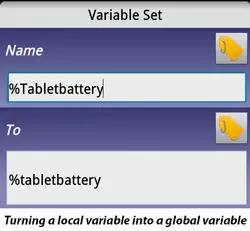 Since %tabletbattery is a local variable it would only be available within that profile, but you could easily use the Set Variable action in the Variable category to create a global variable. This is done by setting the Set Variable action to create a variable with global variable capitalization, like %Tabletbattery, and setting its value (in the Set Variable configuration screen) to %tabletbattery. This would then create a global copy of the local variable.
In this AutoRemote example, the value of a built-in variable on a tablet is sent to another device using a plug-in, where it’s turned into a variable which that device can use. This is just another example of information transfer using variables, but a more advanced one since it transfers information between devices.
Example 3: Minimalistic Text and Make Your Clock Widget
Minimalistic Text and Make Your Clock Widget are two independent Android widget creation apps that both have the ability to receive information from Tasker. They both interact with Tasker very similarly, using an action that transfers information from Tasker (either static text or the value of a variable) into the apps’ own variables.
I use both of these apps, and I use them both with Tasker. I use Minimalistic Text for my shopping list, by having a widget on my lock screen that Tasker can write information to. The widget only shows something if I’m outside and have items in my shopping list; otherwise it’s blank. The shopping list is handled by my own Tasker-based system.
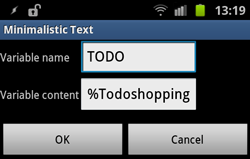 The configuration screen image to the right shows how the action that bridges Tasker and Minimalistic Text is configured. It transfers the value of the Tasker variable %Todoshopping into the Minimalistic Text variable TODO, the latter of which is a variable in a completely different app and as such doesn’t use the % symbol to indicate a variable. Once this task is run, any place where the variable TODO is used in Minimalistic Text ( will then show the value of %Todoshopping. Each time %Todoshopping is changed in Tasker, the bridge action has to be run in order to transfer that information to Minimalistic Text.
Variables as settings
Variables have another use that is perhaps less apparent, but still very important to be aware of: they can be used as settings. This is done by assigning values to variables which are then used as references later. If you have a profile for when you’re home, you can use the Set Variable action to set a variable %Home to “on” when it activates (enter task), and set it to “off” when is deactivates. Any other part of Tasker will then be able to check what value %Home has, and in turn know if you’re home.
If you think about it, this is how settings work outside Tasker as well. If you go into system settings and turn off WiFi, you’re essentially setting a WiFi variable to “off” – it’s just a more visual way of doing it. If you’re connected to a WiFi network called McDonald’s, that’s like having a variable for WiFi network with a value “McDonald’s.”
Referencing variables: contexts
 When I say that other parts of Tasker can check the value of variables and act accordingly, there are many ways it can do this. For contexts, the value of a variable is its very own context. It’s located in the State section, Variable category, Variable Value context.
The screen you get when selecting this context asks for a Name, Op, and Value. Name is the variable name, like %Home. The variable name you put here is simply the name of the variable which contains the information you want the profile to be aware of and react to.
Op is a bit more complicated. It means Operator, and refers to the method Tasker uses to check the value of variables, using a simplified version of regular expressions. You can set it to things like Matches, Doesn’t Match, Maths: Less Than, and so on. In short, the operator refers to the relationship between the third field, Value, and the actual value of the variable.
As an example, let’s say that you want a profile that is active when %Home is set to “on,” and deactivated when %Home is set to “off.” You would then use %Home as the Name, Matches as the Op, and “on” (without the quotes) as the Value. The resulting context can then be read like this:
Activate the profile if the value of the variable %Home matches “on”
To take another example, think back to the morning message example above. The variable %Lazy there has a different value depending on whether or not %Smduration is less than or more than 9. If I want to create a profile that reacts the same way, the Name would be %Smduration, Op would be Maths: Greater Than, and value would be 9. The resulting context can then be read like this:
Activate the profile if the value of %Smduration is at least 9
To finish off with a real world example, I use this system for my location profiles. I have three profiles that are mutually exclusive yet use different contexts. My Home profile is active when I’m connected to my home WiFi, my School profile is active when there’s a calendar entry in my School calendar, and my outside profile is active when the other two aren’t.
To be able to make sure that all profiles are indeed mutually exclusive, I use my own variables as settings. Both the School and the Home profiles have Variable Set actions on both the enter and exit tasks. When the Home profile is active, it sets the variable Home to 1, and when it deactivates, it sets it to 0 (exit task). The School profile does the same for %School.
The Outside profile then has two Variable Value contexts: %School Matches 0, and %Home Matches 0. In other words, it’s only active if both those variables are set to 0 – which in turn only happens when the other two profiles are inactive. The School profile also has two Variable Value contexts, %Home Matches 0 and %Schooloverride Matches 0. The former makes sure the school profile isn’t active when I’m at home (which could happen if we finish early,) whereas the latter variable is set by a button in a scene I have. I’ll cover scenes in the next article, but to make a long story short, I press a button that says “School override” and the school profile deactivates. This is for situations when I finish early but don’t go straight home (50 meters away), allowing me to manually trigger the Outside profile (by deactivating the school profile) for those rare occasions.
Referencing variables: actions
It’s not just contexts that can be controlled by variables – actions can be, too. One of the images in my first article pointed out the If checkbox on an action configuration screen. This checkbox is present for most actions, and allows you to control the action based on If conditions. An If condition is quite simply a condition that has to be fulfilled for the action to run.
 For all intents and purposes, If conditions and Variable Value contexts work the same way. You have a variable name, an operator, and a value that has to be compared to the value of the variable. In the previous section, I explained how the Variable Value context works by using the configuration %Smduration Greater Than 9 as an example. That’s from my sleep mode profile, but it’s actually not used as a context in that profile: it’s used to limit an action using an If condition. The image to the right shows how this is configured.
As you can see, the If checkbox is checked; %Smduration is inputted into the first field; 9 into the second; and the operator is >, which is the symbol for Greater Than. With the action configured this way, the action will only run if the value of %Smduration is greater than 9. If it isn’t, the task simply skips that action.
I can use the same system to limit single actions based on the %Home variable created by my Home profile. If I want an action to run only when I’m home, all I have to do is check the If box, type %Home into the first box, select = (Matches) as the operator, and type 1 into the second box. That way it will only run when the value of %Home is 1, which only happens when I’m actually at home.
Please note that the choice to set %Home/%School to 1 or 0 instead of on or off is my own personal choice. You decide what the various states of a setting should be, and if you were to create your own Home profile with a %Home variable, there’s absolutely nothing stopping you from using a value of “crabcakes” as “on” and “hurricane” as “off.” It would simply mean that you would need to set the context/If condition to %Home Matches “crabcakes”.
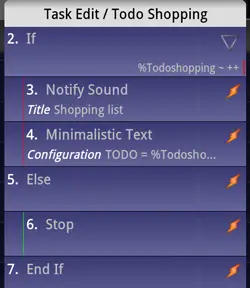 It’s also possible to group multiple actions under the same If condition. To do that you use the If action found under Task, configure it like you would an integrated If condition, and then place it before the first action you want in the grouping. Any actions following that If action will then be nested under it, and follow its condition. You close the group by inserting an End If action. This is simply an easier method for applying the same If condition to multiple actions
Finally, there’s an action in the same category called Else. This is an optional action you can use between an If and an End If condition to create a new group of actions (nested under the Else action) which will run if the If condition is not met, but only if it’s not met. The screenshot to the right demonstrates this with one of my profiles, where I’ve inserted an Else action for the sake of demonstration.
The way to read this setup is as follows:
If the if condition is fulfilled, run action 3 (Notify Sound) and 4 (Minimalistic Text)
If not (Else), run action 6 (Stop)
The Else action is optional, and it really only saves you from adding a second If group that is the exact opposite of the first one.
I have previously written an article on controlling profiles using variables, which you can find here. Much of it is the same as what you’ve read here, but it was written for existing Tasker users, not beginners.
Special characters
When doing pattern matching using this method, it’s important to be aware of the three special characters *, / and +.
* is a wildcard, meaning that you can use it to match only part of a piece of text. If you input Android into the value field and use Matches as the operator, it will only match the exact use of Android. *Android* on the other hand will match any use of the word Android, like I like Android very much. *Android would match I like Android, but not I like Android very much, because the wildcard is only in front of the word, not behind it. In some cases it’s better to use *ndroid* instead of *Android* because the former will catch both Android and android.
Update: Sean points out in the comments that you can use all lower case letters in pattern matching and it will work with everything. For instance, *ndroid* here is not necessary because *android* would match with both Android and android. It does however not work the other way around, so *Android* would not match both. I wasn’t aware of this, and it saves you some hassle when dealing with case sensitivity.
/ acts as OR, meaning that it lets you insert multiple values in a single field. Inputting 1/2/3 in the value field and using Matches as the operator would match variable values of both 1, 2, and 3. This is very useful since it lets you create contexts and If conditions that react to several different variable values.
+ means “at least one letter.” You can see the use of this in the If/Else/End If screenshot above, in the very first action, where the If action is configured as %Todoshopping Matches ++. Tasker reads this condition as “If %Todoshopping contains at least two letters, no matter which letters they are.”
Empty variables
Empty variables will not be replaced by blank space; instead, they will retain their full variable name if referred to. If you create a notification with %Variable as the text and that variable doesn’t contain anything, then the notification will literally say %Variable. To make it display blank space instead, create a Variable Set action for that variable and set it to a space.
Use an If condition with the variable in question as the variable, Matches as the operator, and *variable-name-without-%-symbol* as the value (see the screenshot below to see what I mean by this).
Example for the variable %Home:

This writes a space as the value of the variable if it’s empty, which it detects by seeing if the variable value is the variable name. Note that you should insert the space in the text field last, and immediately save without selecting anything else. Otherwise you will likely get an error message saying that the field can’t be empty.
Processing data using variables
So far I’ve mostly talked about simple ways of using variables to transfer information and control actions and contexts, but that’s only half the story. For those who have read my older articles about Tasker, you’ve probably seen some articles which processed data internally in Tasker. Examples include a weather forecast announcer and calendar event announcer. What these have in common is that they process information after it has been imported into Tasker, essentially taking a single variable full of information and chopping it up into tiny pieces that can be used as settings or as dynamic text.
To do this, you use many of the tools available in the Variable category in the action list. Variable Split is one of the most powerful, but you’ll also find Variable Section, Variable Search & Replace, and others. Knowing how to use these gives you the ability to get Tasker to do practically anything, since more or less any text-based information source online or offline can then be used with Tasker.
Unfortunately, this is a massive topic to cover, and I’m already coming up on 4000 words from explaining the “simple” side of variables alone. As such, I want to dedicate an entire article to this topic later on in the series, after some of the more basic things are out of the way. I did however want to mention it briefly in this article as to not make people think I either forgot or that they’ve missed something.
Nelly is built on pattern matching variables
To finish off this part of the guide, I can mention that my DIY Tasker-based voice assistant, Nelly, is built (more or less) entirely on the concept of variables and pattern matching. It can be a good idea to read through that (old) article after reading this part of the guide to see how it’s implemented in practice and at such a large scale.